Set up a Crawlhub proxy in AdsPower.
Assign a custom connection to a browser profile and test it before starting work.
Go to setup guide
A custom proxy for the profile
AdsPower manages browser-profile settings and supports custom HTTP, HTTPS and SOCKS5 proxies. The protocol and account details must match the endpoint assigned by your proxy service.
Profile-level configuration
Keep the intended connection in the profile’s Proxy settings.
Separate authentication
Proxy username and password are separate from the account used to sign in to AdsPower.
A connection test
Use Check Proxy before saving or opening the profile.
Session continuity
Use a fixed assignment or the intended sticky-session configuration when the profile needs a stable exit IP.
Set up AdsPower with Crawlhub
Start with one connection check. Add your workload after the route works.
 AdsPower
| Connection field | What to enter |
|---|---|
| Protocol | Protocol assigned to this proxy endpoint |
| Hostname | Assigned proxy hostname, without a URL path |
| Port | Assigned port for the selected protocol |
| Username | Full assigned username, including configured session or location values |
| Password | Proxy password, not the browser-tool account password |
Before you start
An active proxy connection with its assigned protocol, hostname, port, full username and password. Copy those fields from your account or activation details. A browser profile does not create proxy credentials.
An AdsPower account and installed browser application. This guide covers a single profile with a custom proxy. It does not assume that every Crawlhub product offers every protocol or a fixed IP.
Create or edit a profile
Open AdsPower and select New Profile, or edit the profile you want to configure. Give the profile a name that identifies its purpose.
Open its Proxy section and choose Custom. Leave unrelated browser fingerprint settings at the values required by your workflow.
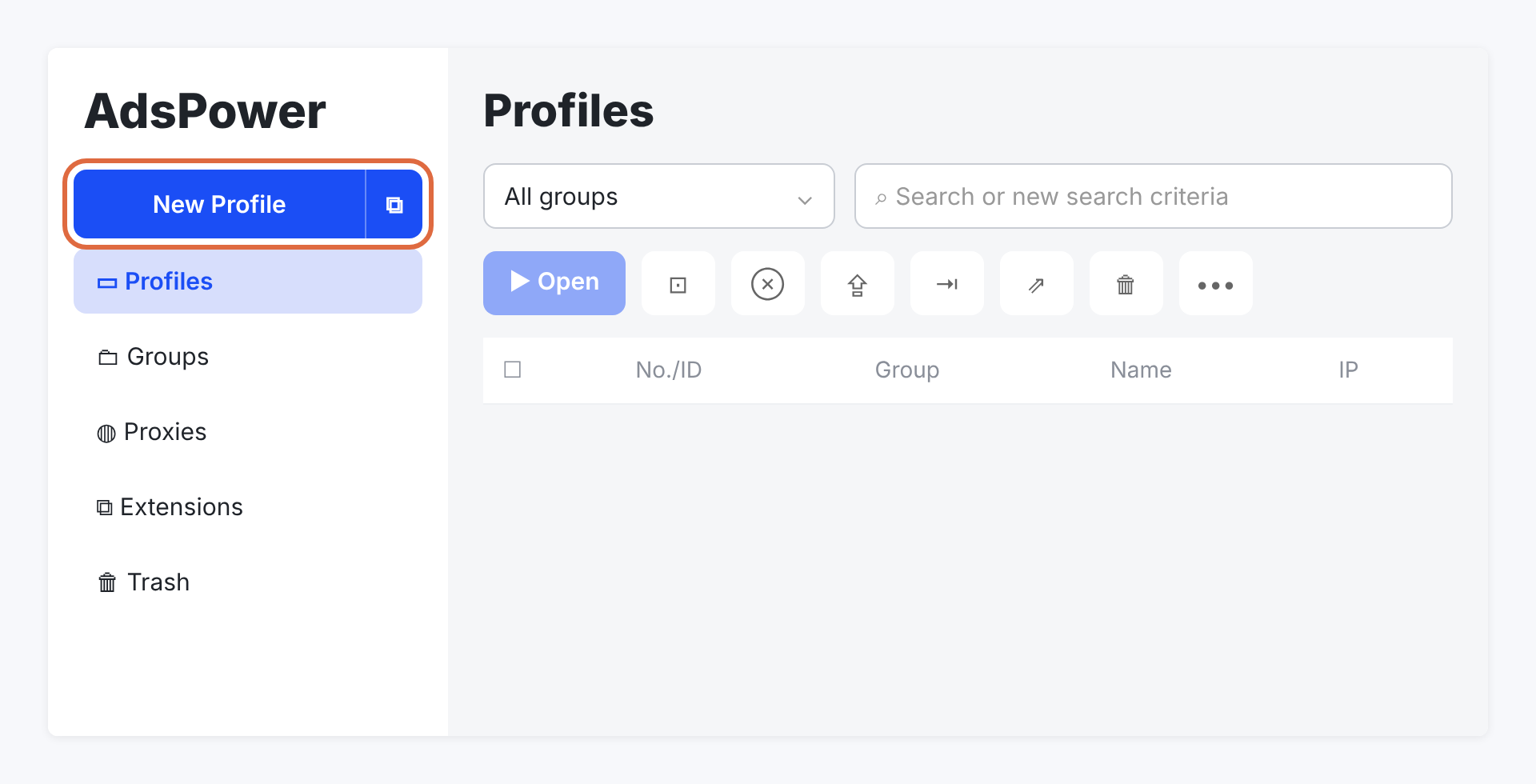
Document interface reference: create a browser profile. View full size Add the connection
Choose the proxy protocol assigned to your endpoint. Enter the Host:Port, Proxy username and Proxy Password fields. AdsPower can also parse a provider-supplied IP:port:username:password string into the fields.
Copy the complete assigned username. Do not add country, city or session suffixes unless those values are part of your service’s documented configuration. Leave Change IP URL empty unless your service explicitly supplies one.
Enter raw credentials in separate username and password fields. URL-encode them only when a client requires a proxy URL; do not paste an encoded password into a normal password field.
The new Crawlhub v1 username specification is documented in the proxy parameter reference. Its planned gateway naming is separate from the live connection details assigned to an activated account.
Settings for this step Connection field What to enter Protocol Protocol assigned to this proxy endpointHostname Assigned proxy hostname, without a URL pathPort Assigned port for the selected protocolUsername Full assigned username, including configured session or location valuesPassword Proxy password, not the browser-tool account passwordThe screenshots are supplied interface examples. Pictured hostnames, ports and username suffixes are draft values; use your assigned connection details and the current Crawlhub parameter reference.
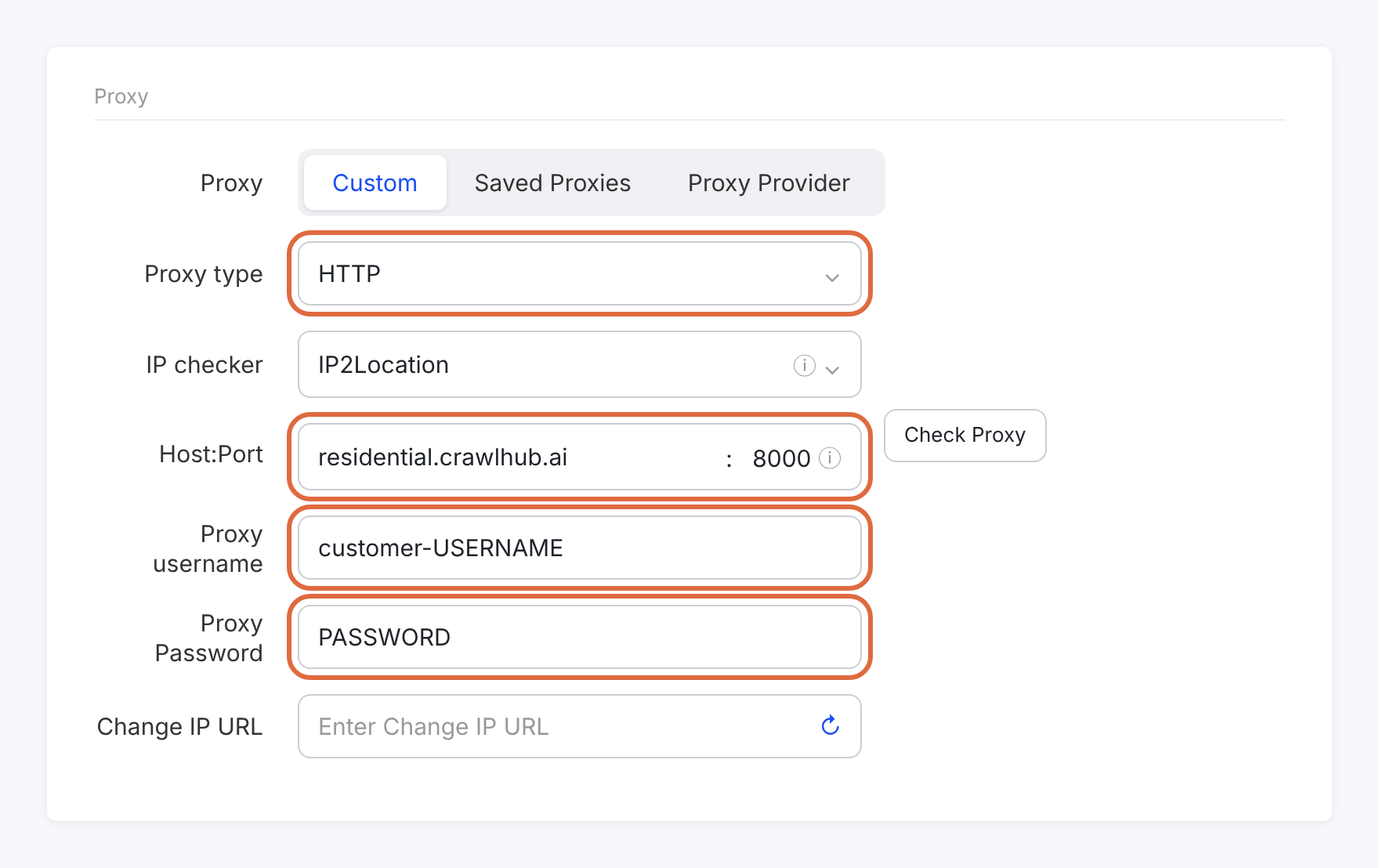
Document interface reference: residential proxy fields. View full size 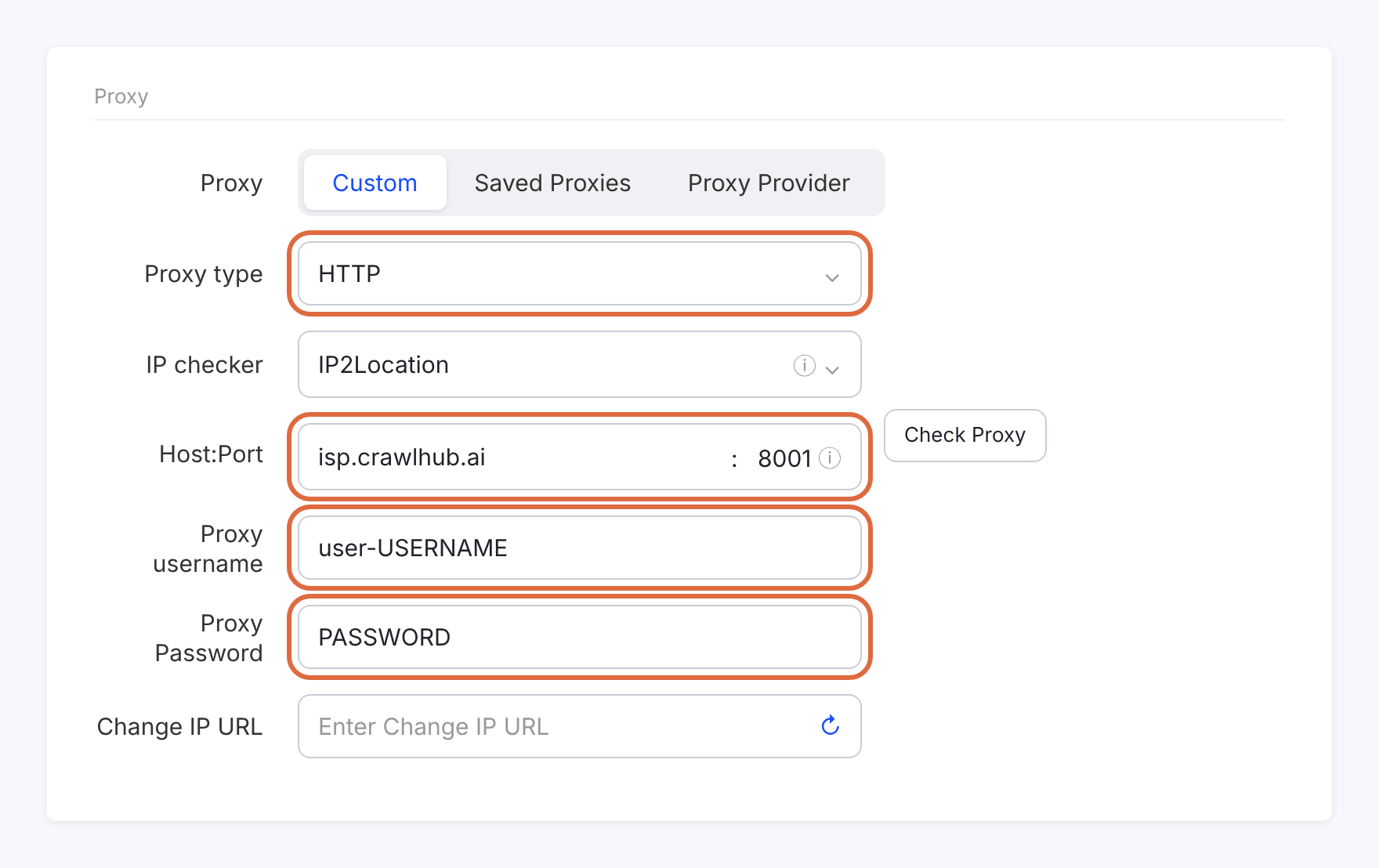
Document interface reference: ISP proxy fields. View full size 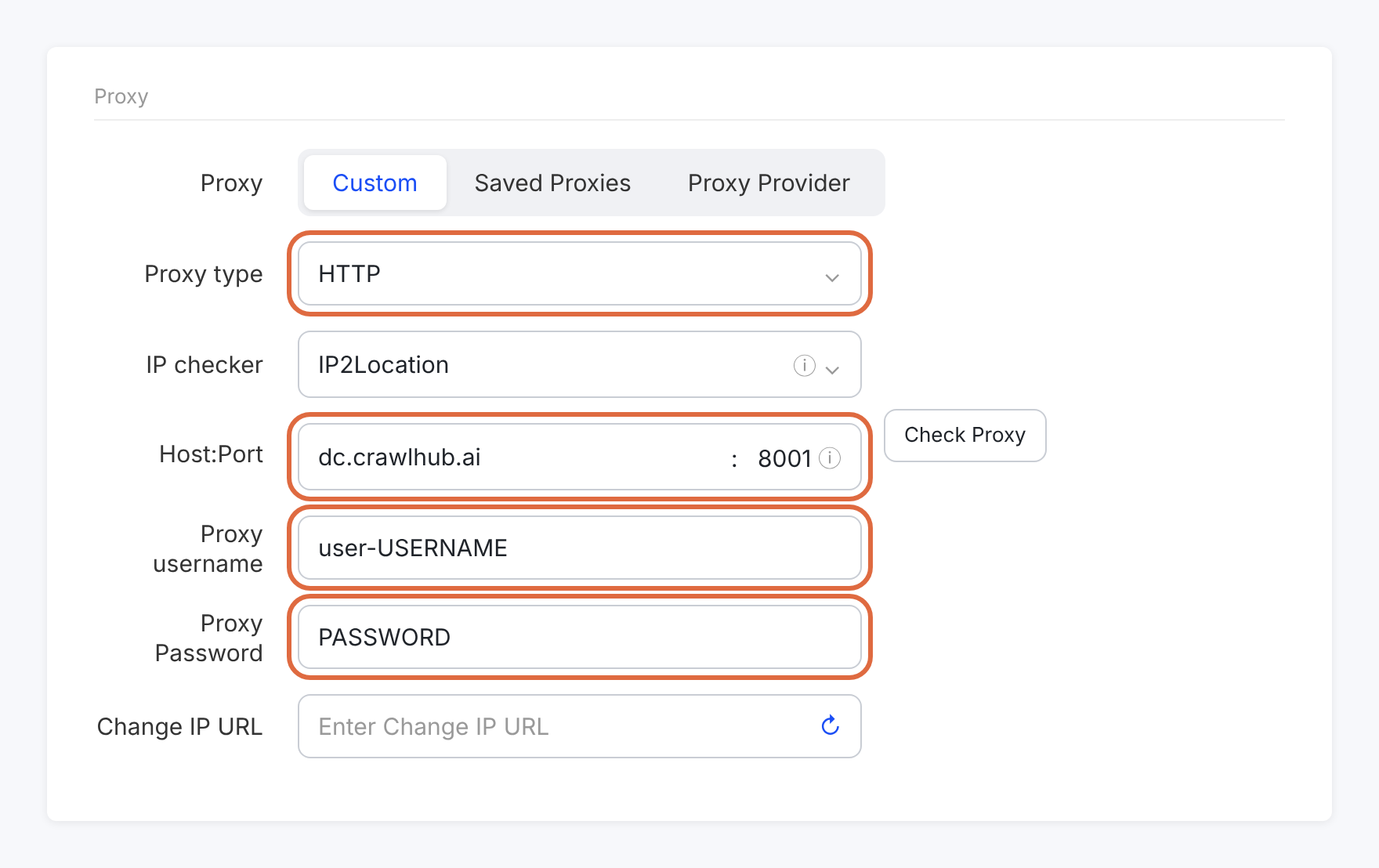
Document interface reference: datacenter proxy fields. View full size Check the proxy
Click Check Proxy. A passed test means AdsPower connected successfully; inspect its reported IP and location as well.
If the test fails, correct the protocol, host, port or login before launching the profile. A saved profile by itself is not proof of a working proxy connection.
The screenshots contain document example values, not live endpoints or measurements. Use the assigned settings in the current instructions.
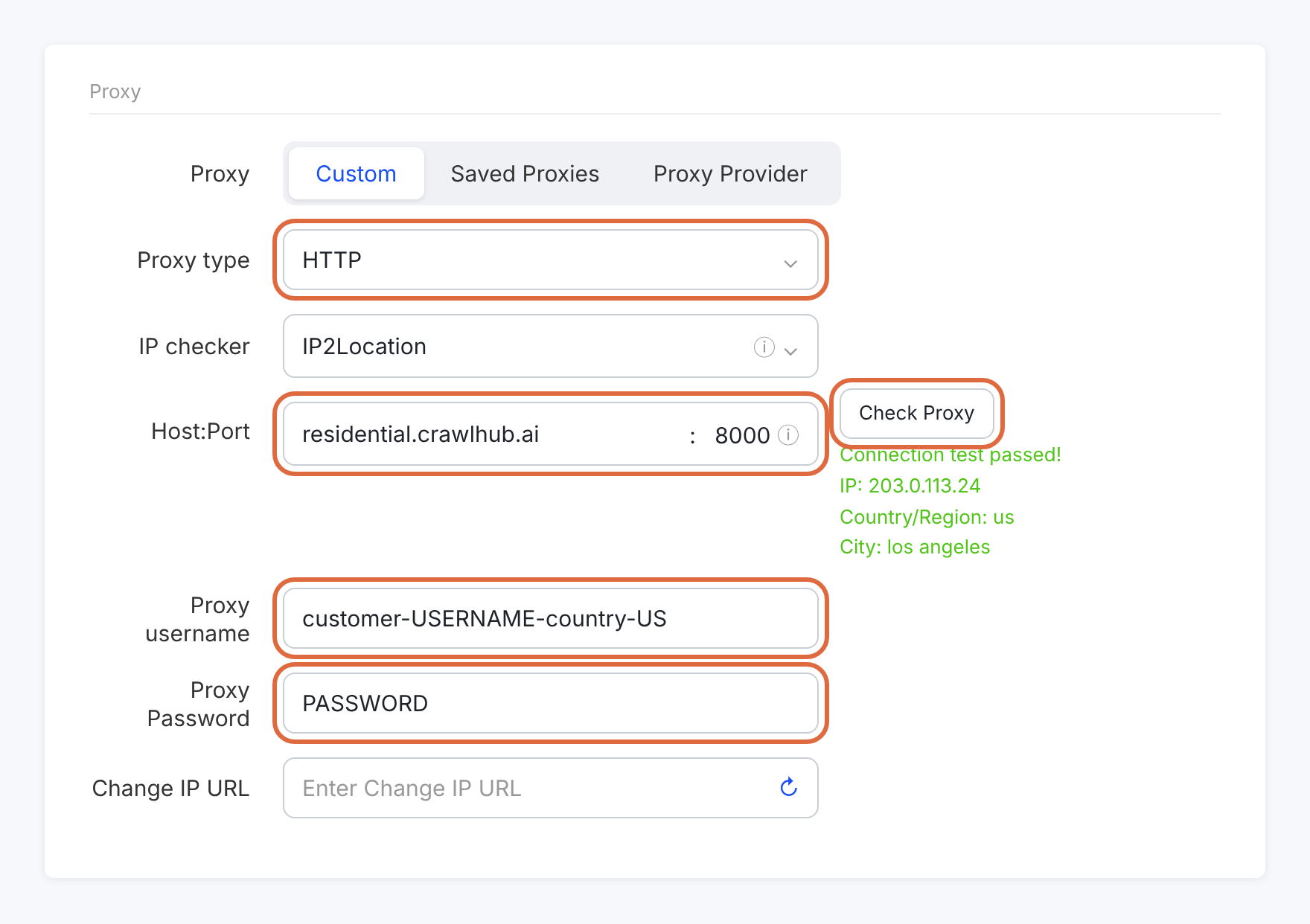
Document interface reference: connection-check example. View full size Save and open the browser
Click OK to save the profile, find it in Profiles and click Open. Check the exit IP from a page inside that browser.
Keep a fixed assigned IP or sticky session when you need continuity. Rotating residential connections do not automatically give each profile a permanent unique IP, and a proxy alone does not guarantee that accounts cannot be associated.
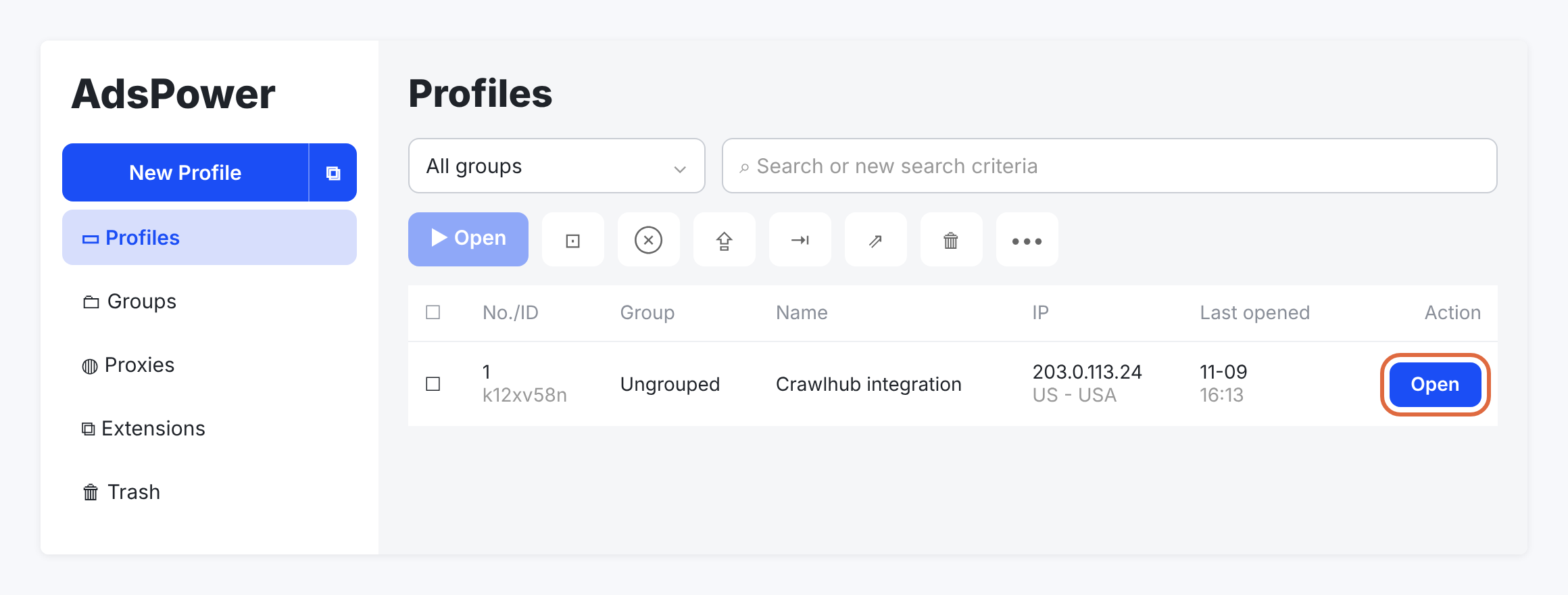
Document interface reference: launch the saved profile. View full size
When the connection fails
Use the error to narrow down the next check.
Connection test failed
Check the endpoint’s assigned protocol and port, then confirm the complete username and proxy password.
Exit location differs
Inspect the configured location and session values in your proxy account instead of adding guessed username suffixes.
IP changes after a restart
Confirm the assignment type and session lifetime. A browser profile does not pin an otherwise rotating connection.