FoxyProxy and Crawlhub. Switch proxy profiles in one click.
Add your Crawlhub connections to FoxyProxy and choose which browser requests use them.
Go to setup guide
What is FoxyProxy?
FoxyProxy is a proxy-manager extension for Chrome, Firefox and supported Chromium browsers. The extension manages your chosen proxy service; installing it does not supply proxy access.
One-click switching
Select a saved proxy entry from the browser toolbar.
Several saved connections
Give each endpoint a clear title so you can choose the intended route.
URL patterns
Use the pattern features available in your edition to route matching sites.
Free extension
The extension is free to install. Proxy-service access is separate.
Set up FoxyProxy with Crawlhub
Start with one connection check. Add your workload after the route works.
 FoxyProxy
| Connection field | What to use |
|---|---|
| Hostname | Assigned proxy hostname or IP, without a URL path |
| Port | Assigned port for this endpoint and protocol |
| Username | Full assigned username, including any configured targeting/session values |
| Password | Proxy password, not the browser-tool account password |
Before you start
Use an activated connection and its assigned hostname, port, protocol, full username and proxy password. The proxy login is separate from the account used to sign in to the tool.
Use an officially supported FoxyProxy release for your browser. HTTP/HTTPS proxy authentication works in Chrome and Firefox; SOCKS5 username/password authentication is Firefox-only. The instructions below use an authenticated HTTP endpoint.
Open FoxyProxy options
Install FoxyProxy through the project’s official browser-store links. Open the extension menu and choose Options.
Enable the permissions required by your browser. Firefox requires the appropriate private-window permission for proxy settings; Chrome incognito access is enabled separately if you intend to use it.
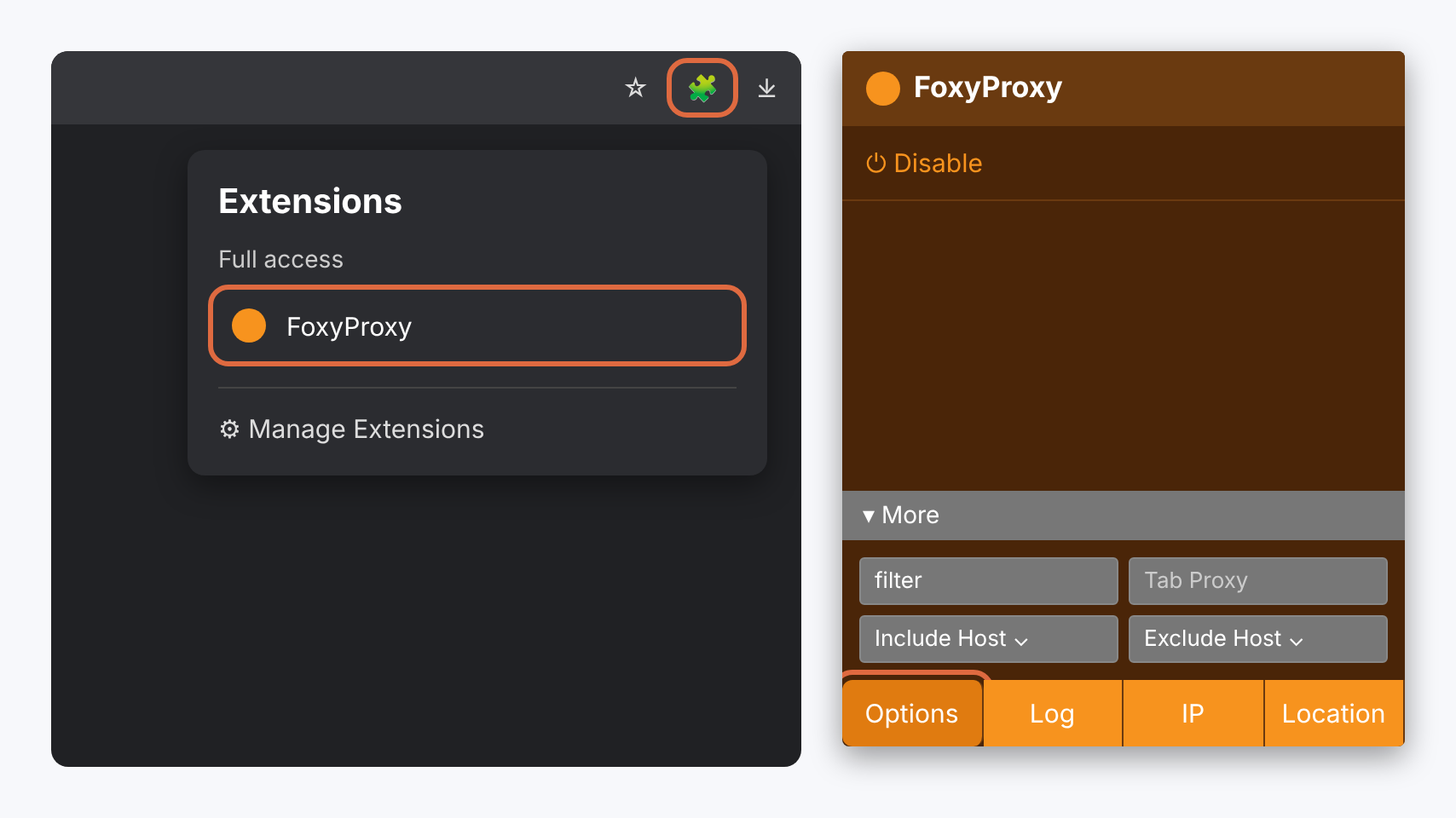
Document interface reference: open FoxyProxy Options. View full size Add your assigned connection
Open Proxies and choose Add. Set a title such as Crawlhub Residential and select HTTP for an HTTP proxy endpoint. Select HTTPS only when the connection to the proxy itself uses TLS.
Enter Hostname, Port, Username and Password from your assigned connection. Enter raw credentials in separate fields. On Chromium, use HTTP/HTTPS for password-authenticated proxies rather than SOCKS5.
Settings for this step Connection field What to use Hostname Assigned proxy hostname or IP, without a URL pathPort Assigned port for this endpoint and protocolUsername Full assigned username, including any configured targeting/session valuesPassword Proxy password, not the browser-tool account passwordThe screenshots are supplied interface examples. Pictured hostnames, ports and username suffixes are draft values; use your assigned connection details and the current Crawlhub parameter reference.
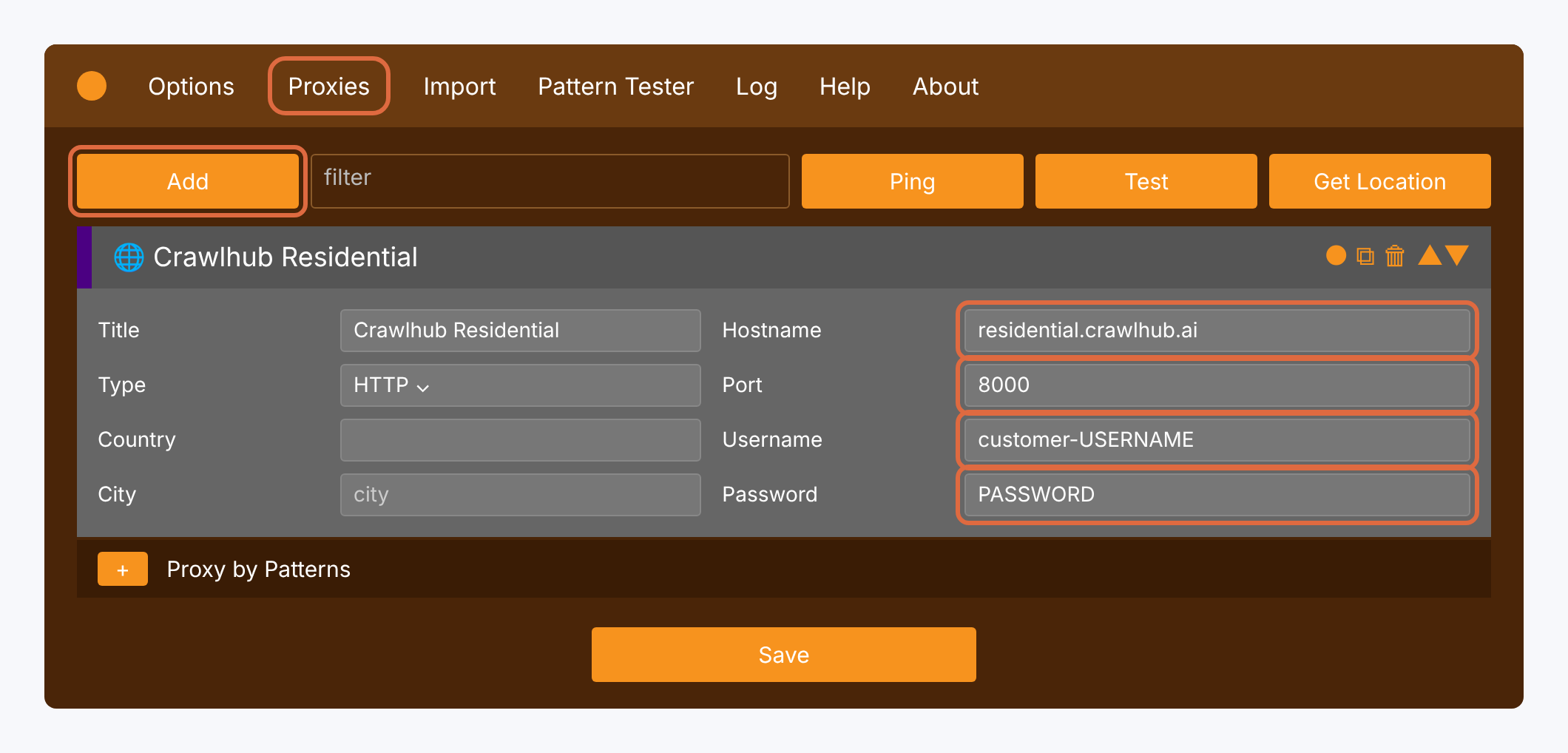
Document interface reference: residential proxy entry. View full size 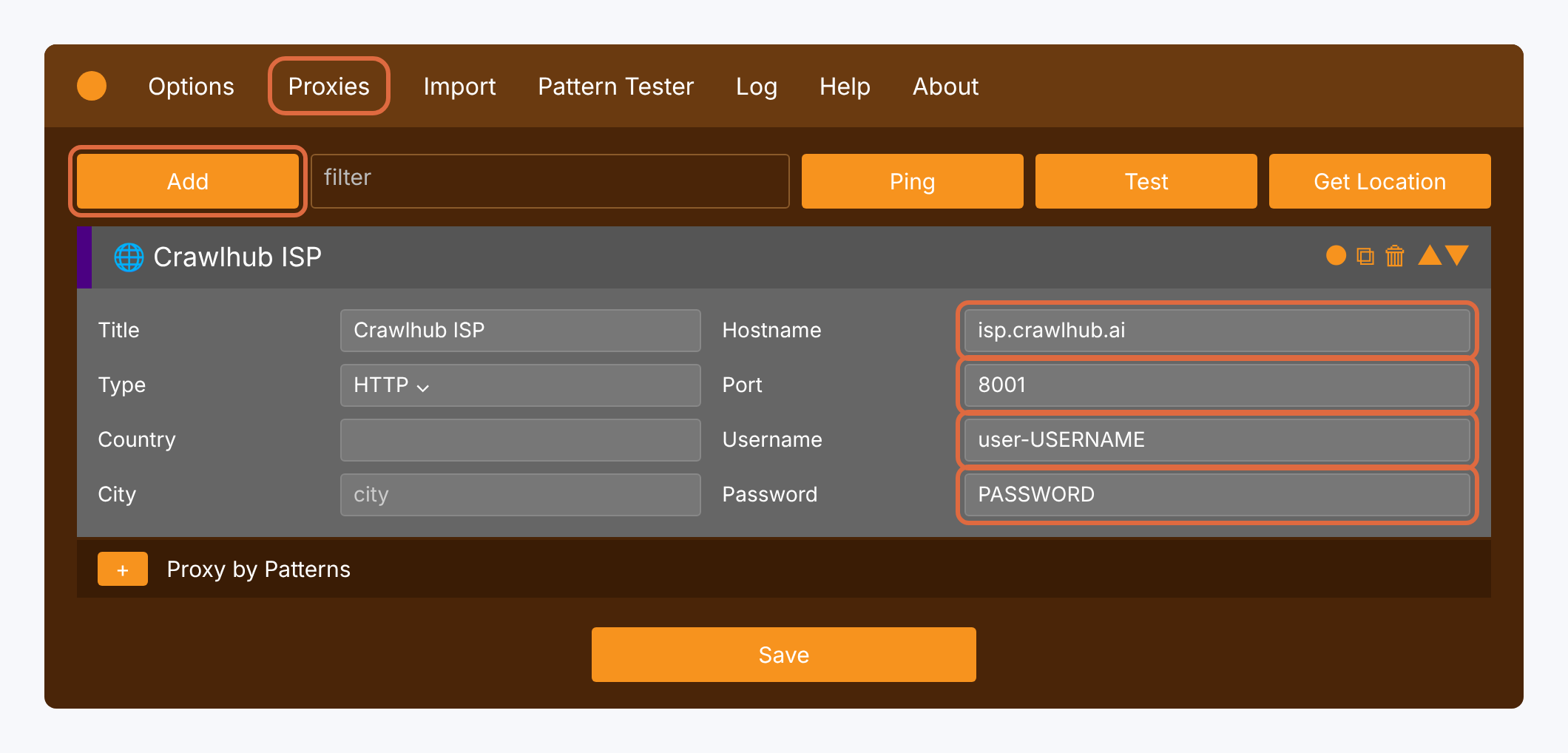
Document interface reference: ISP proxy entry. View full size 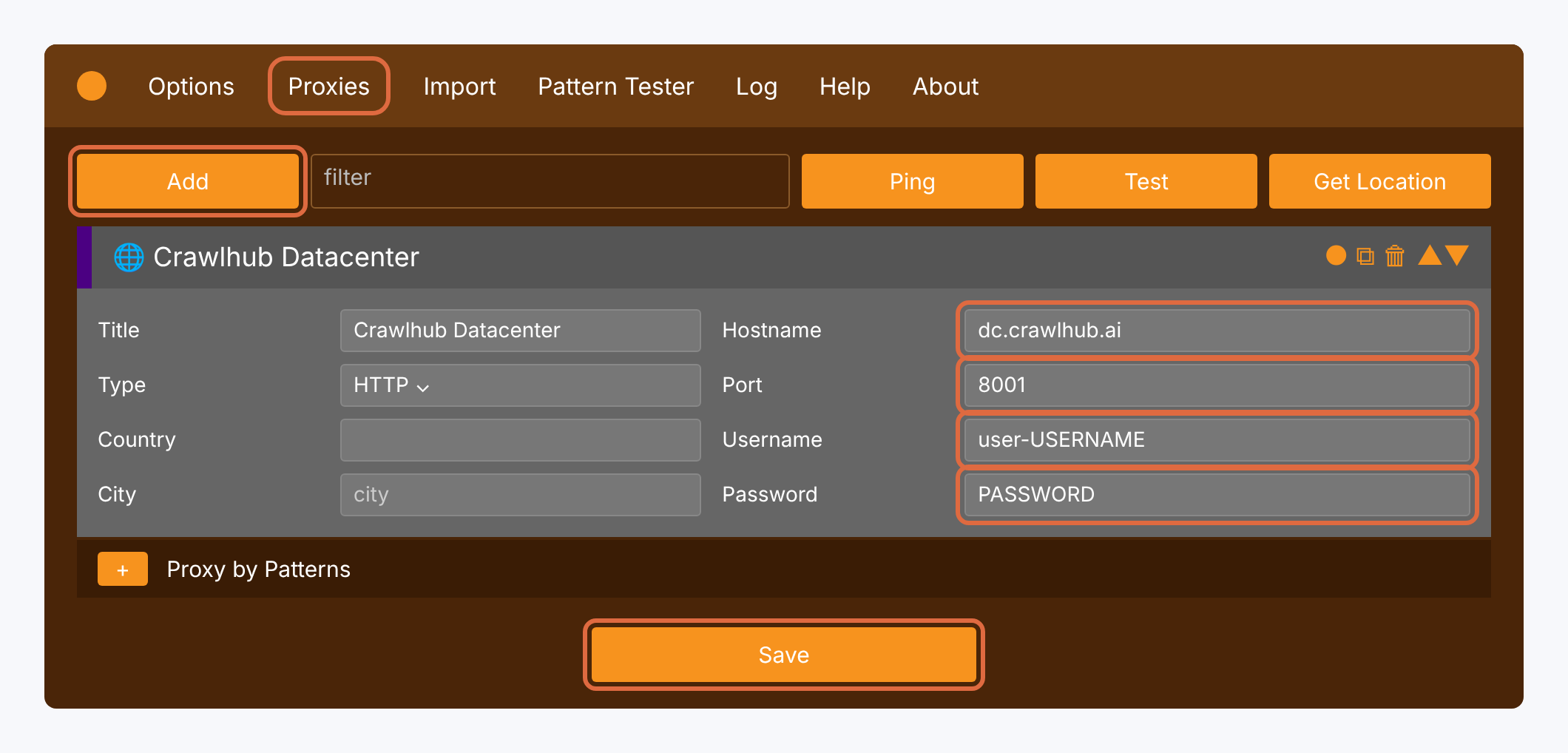
Document interface reference: datacenter proxy entry. View full size Save and choose the routing mode
Click Save. Add another entry for each connection you want to switch to.
Country, City and Color labels help identify an entry; they do not configure upstream geolocation. Use the location/session values supplied by your service. Pattern-based routing must include the intended sites and can be affected by exclusions or more specific proxy modes.
Turn it on and check the exit IP
Choose the saved Crawlhub entry from the FoxyProxy menu. Use its IP shortcut when available, or open an IP-check page in the same browser.
Confirm the address and location. Switching entries does not guarantee a new IP if both entries use the same upstream session or assignment. Use Disable when you want the extension to stop selecting that proxy.
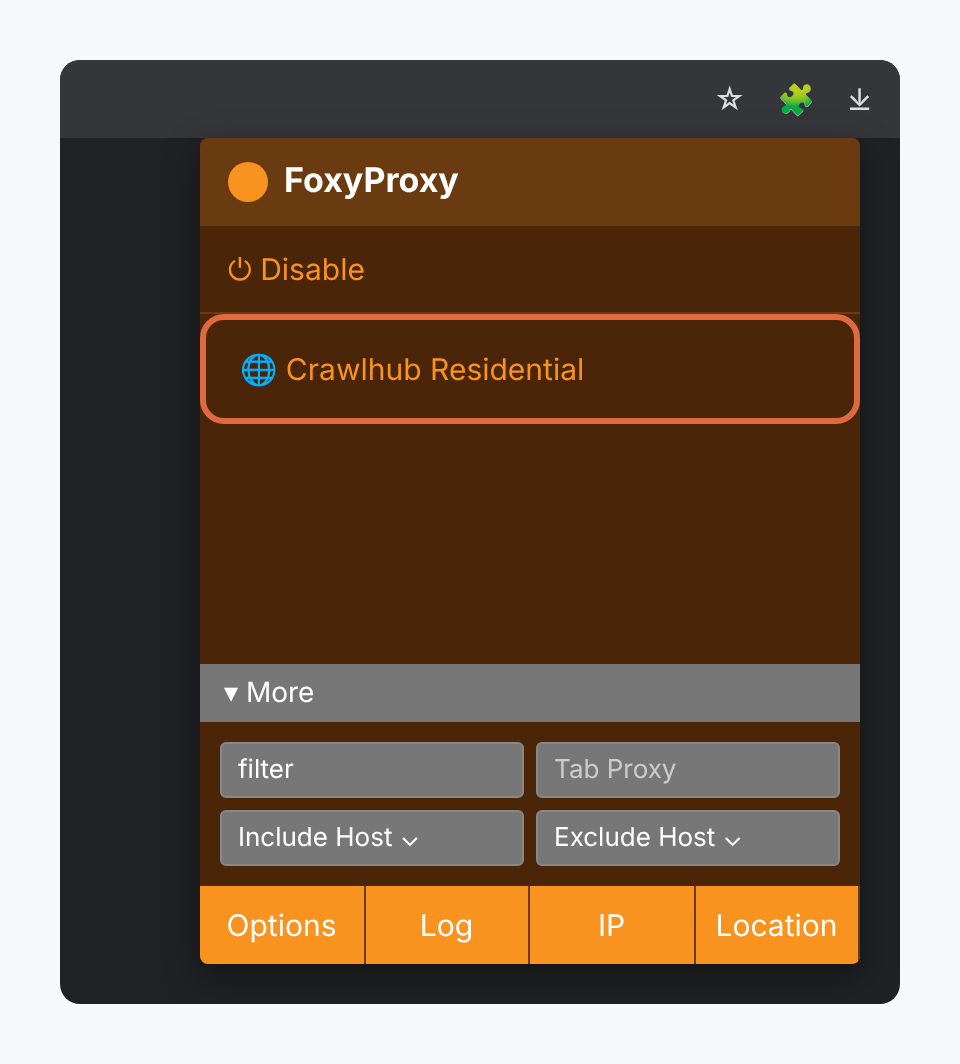
Document interface reference: select the saved entry. View full size
When the connection fails
Use the error to narrow down the next check.
SOCKS5 login fails in Chrome
Chromium does not support SOCKS5 proxy password authentication. Use an assigned HTTP/HTTPS endpoint, or verify Firefox support for your setup.
Some pages take a different route
Review global exclusions, pattern rules, private-window settings and any other extension or enterprise policy controlling proxies.
Location label and exit differ
The extension’s country/city labels are descriptive. Check the actual upstream targeting and observed exit IP.