Add a Crawlhub connection to GoLogin.
Attach your assigned proxy to a GoLogin profile, confirm the connection and check its exit address.
Go to setup guide
Third-party proxies in GoLogin
GoLogin lets you add an external proxy from the All profiles list or from a profile’s settings. Its current interface checks the connection as you add it.
Profile connection
Add a proxy from the profile’s Location or Proxy & Location column.
Current and older settings paths
The profile settings route is Settings → Proxy → Your proxy; older screens may use different button labels.
Automatic checking
The current Add proxy flow checks the connection and shows a working or failed indicator.
Your chosen provider
Keep the custom connection selected rather than replacing it with a built-in proxy during troubleshooting.
Set up GoLogin with Crawlhub
Start with one connection check. Add your workload after the route works.
 GoLogin
| Connection field | What to enter |
|---|---|
| Protocol | Protocol assigned to this proxy endpoint |
| Hostname | Assigned proxy hostname, without a URL path |
| Port | Assigned port for the selected protocol |
| Username | Full assigned username, including configured session or location values |
| Password | Proxy password, not the browser-tool account password |
Before you start
An active proxy connection with its assigned protocol, hostname, port, full username and password. Copy those fields from your account or activation details. A browser profile does not create proxy credentials.
An installed GoLogin application and a profile you can edit. This guide follows its current third-party proxy flow. It does not assert that older screenshots or protocol menus match every release.
Open the profile’s connection
Create a profile if needed. In All profiles, find its Location or Proxy & Location column and use the add control. Choose the computer or custom-proxy option.
Alternatively, open the profile’s three-dot menu, then Settings → Proxy → Your proxy.
These screenshots show the earlier profile form. Current GoLogin also provides the Location → Connect flow described in the instructions.
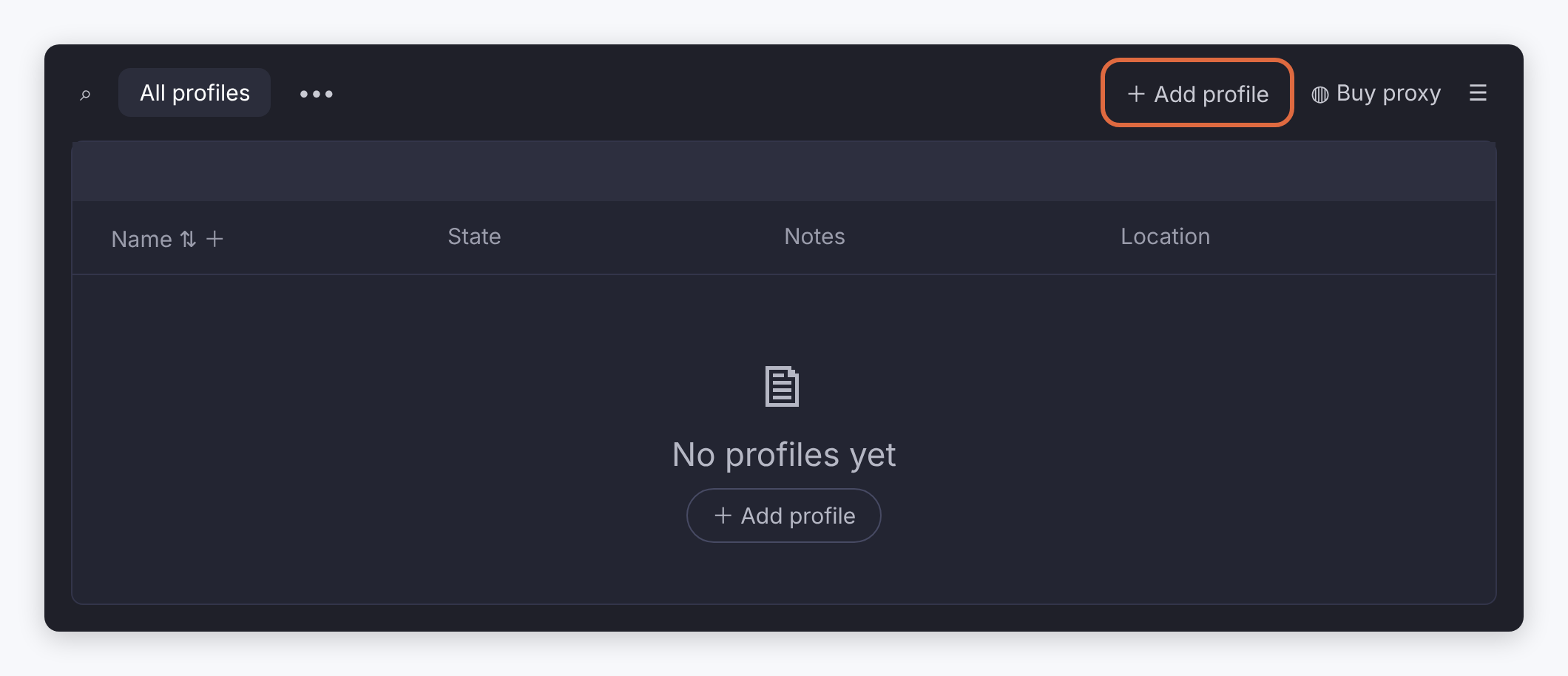
Document interface reference: add a browser profile. View full size 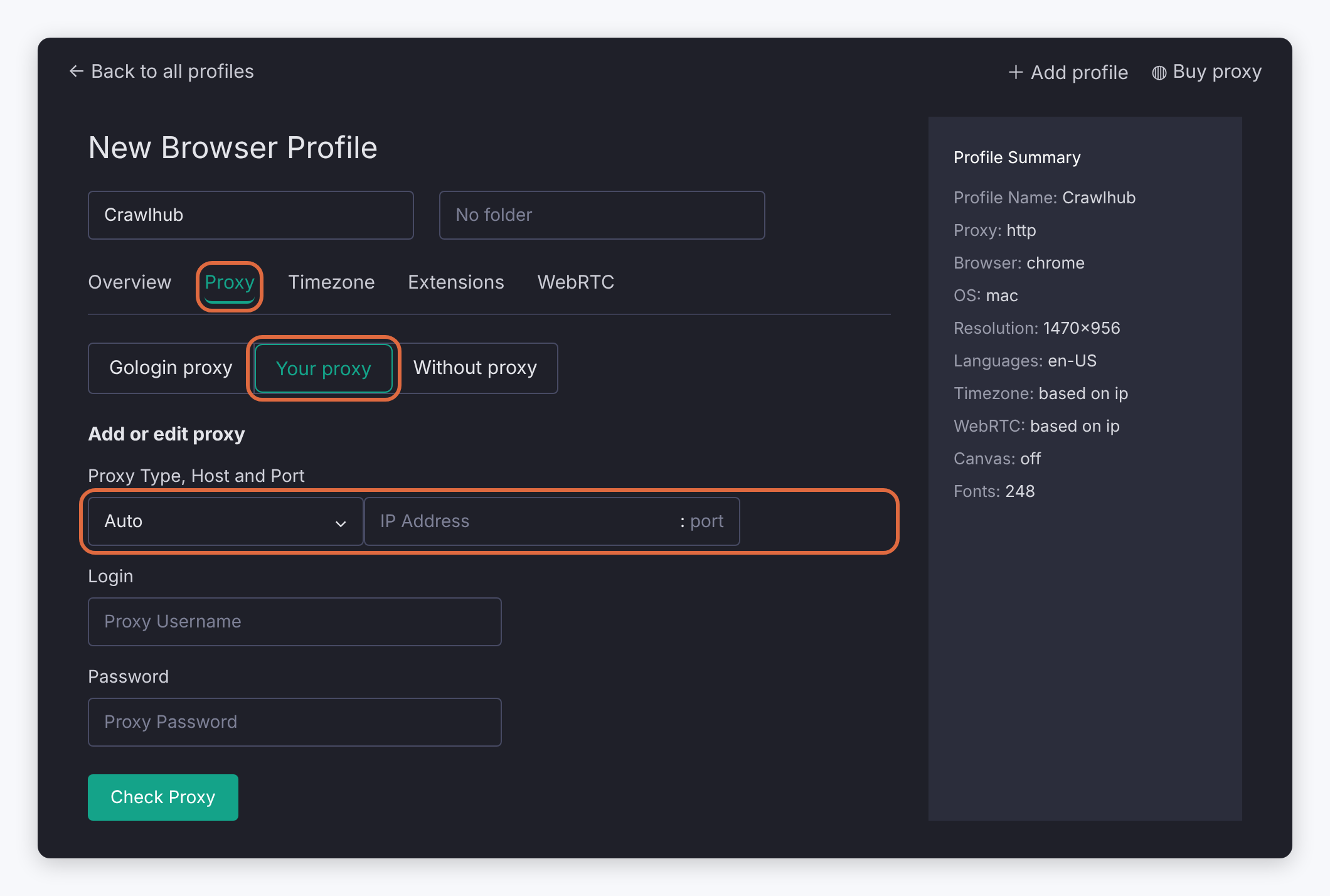
Document interface reference: open Your proxy settings. View full size Enter the assigned fields
Enter the assigned hostname or IP, port, login and password in their fields. The IP field accepts the address alone, not a full credential string.
Where the proxy import or profile column accepts a complete string, use the format supplied by your service, such as HOST:PORT:LOGIN:PASSWORD. Let GoLogin detect HTTP or SOCKS, then confirm that the selected protocol matches the endpoint. Protocol controls and labels may differ by version.
Enter raw credentials in separate username and password fields. URL-encode them only when a client requires a proxy URL; do not paste an encoded password into a normal password field.
The new Crawlhub v1 username specification is documented in the proxy parameter reference. Its planned gateway naming is separate from the live connection details assigned to an activated account.
Settings for this step Connection field What to enter Protocol Protocol assigned to this proxy endpointHostname Assigned proxy hostname, without a URL pathPort Assigned port for the selected protocolUsername Full assigned username, including configured session or location valuesPassword Proxy password, not the browser-tool account passwordThe screenshots are supplied interface examples. Pictured hostnames, ports and username suffixes are draft values; use your assigned connection details and the current Crawlhub parameter reference.
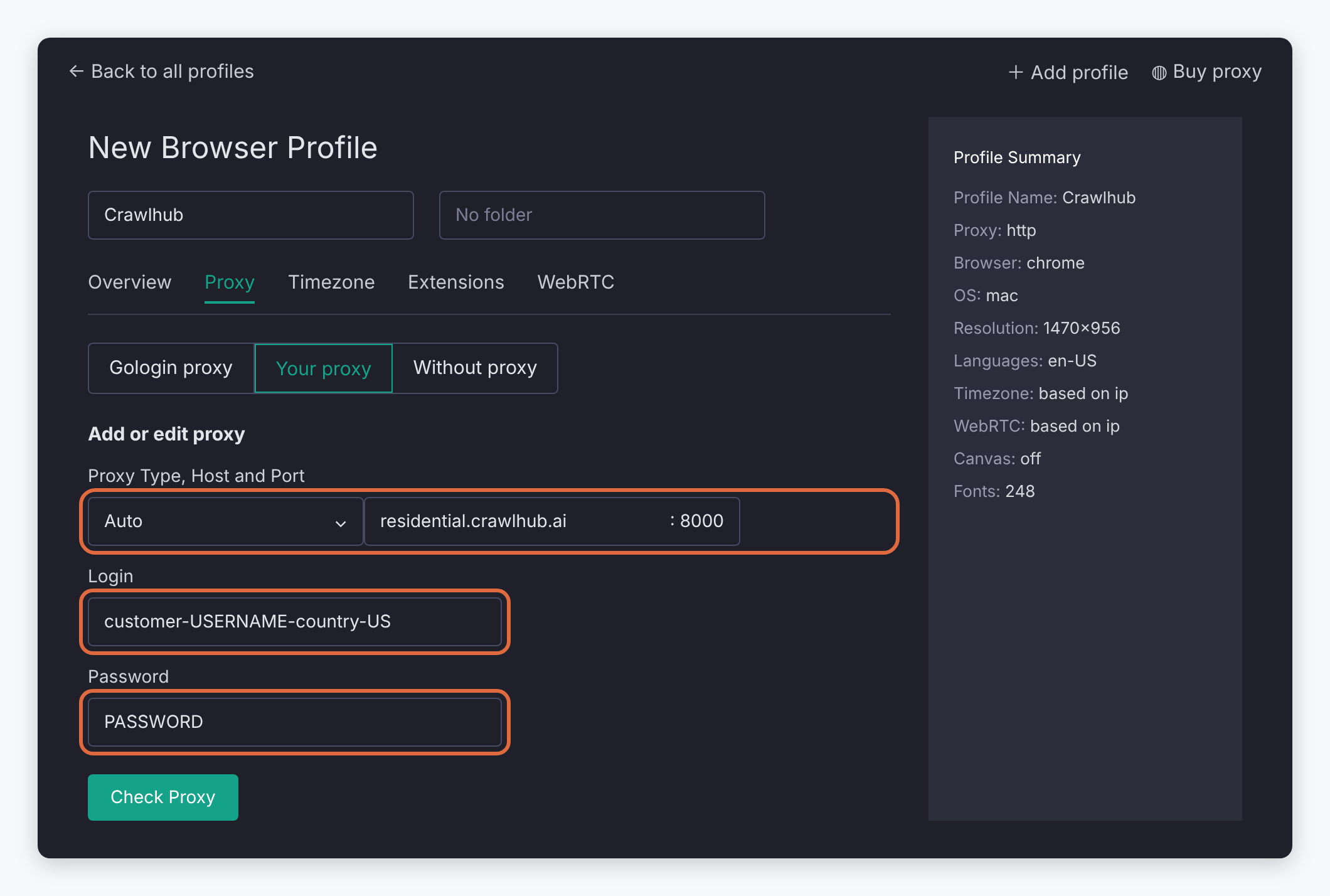
Document interface reference: residential proxy fields. View full size 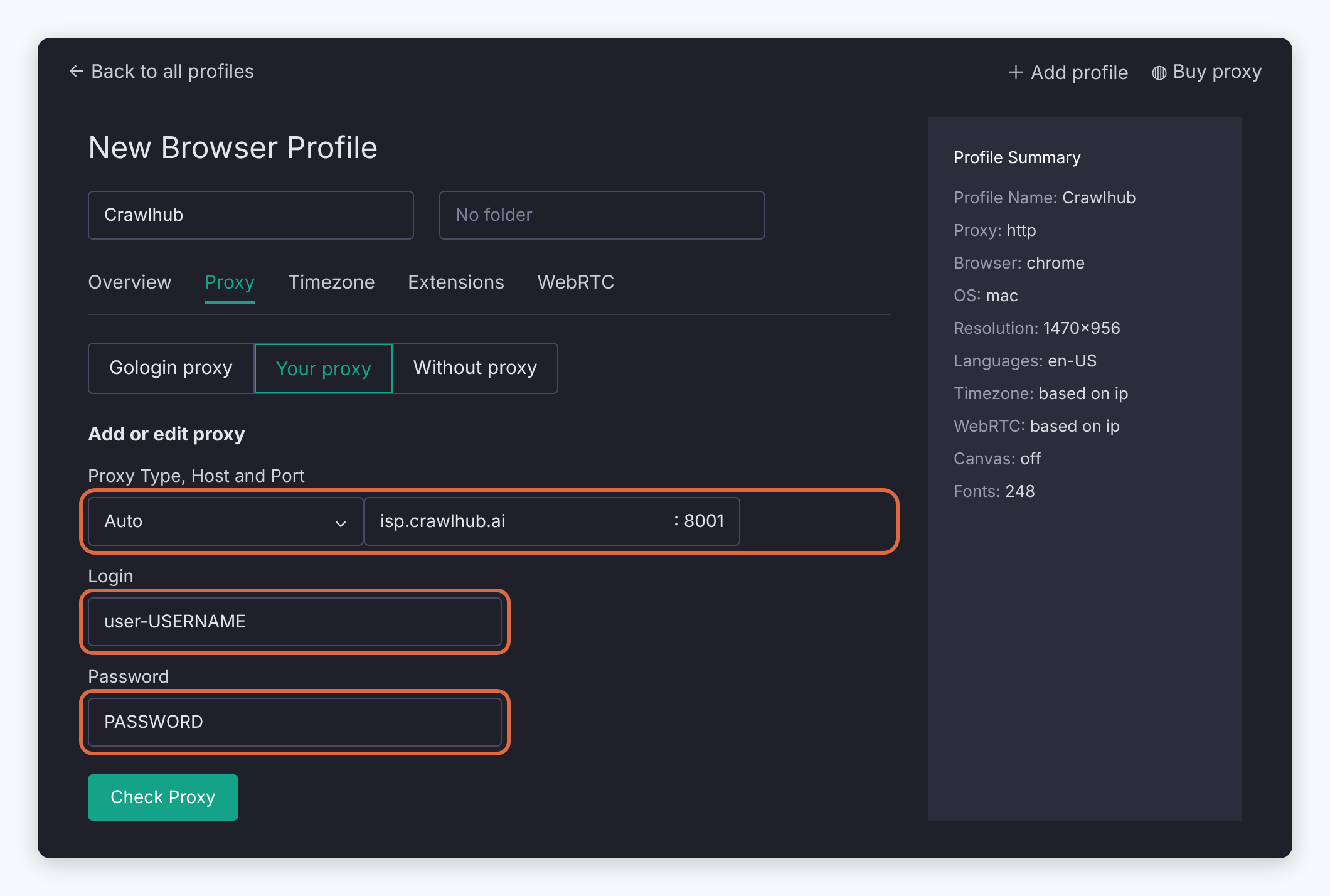
Document interface reference: ISP proxy fields. View full size 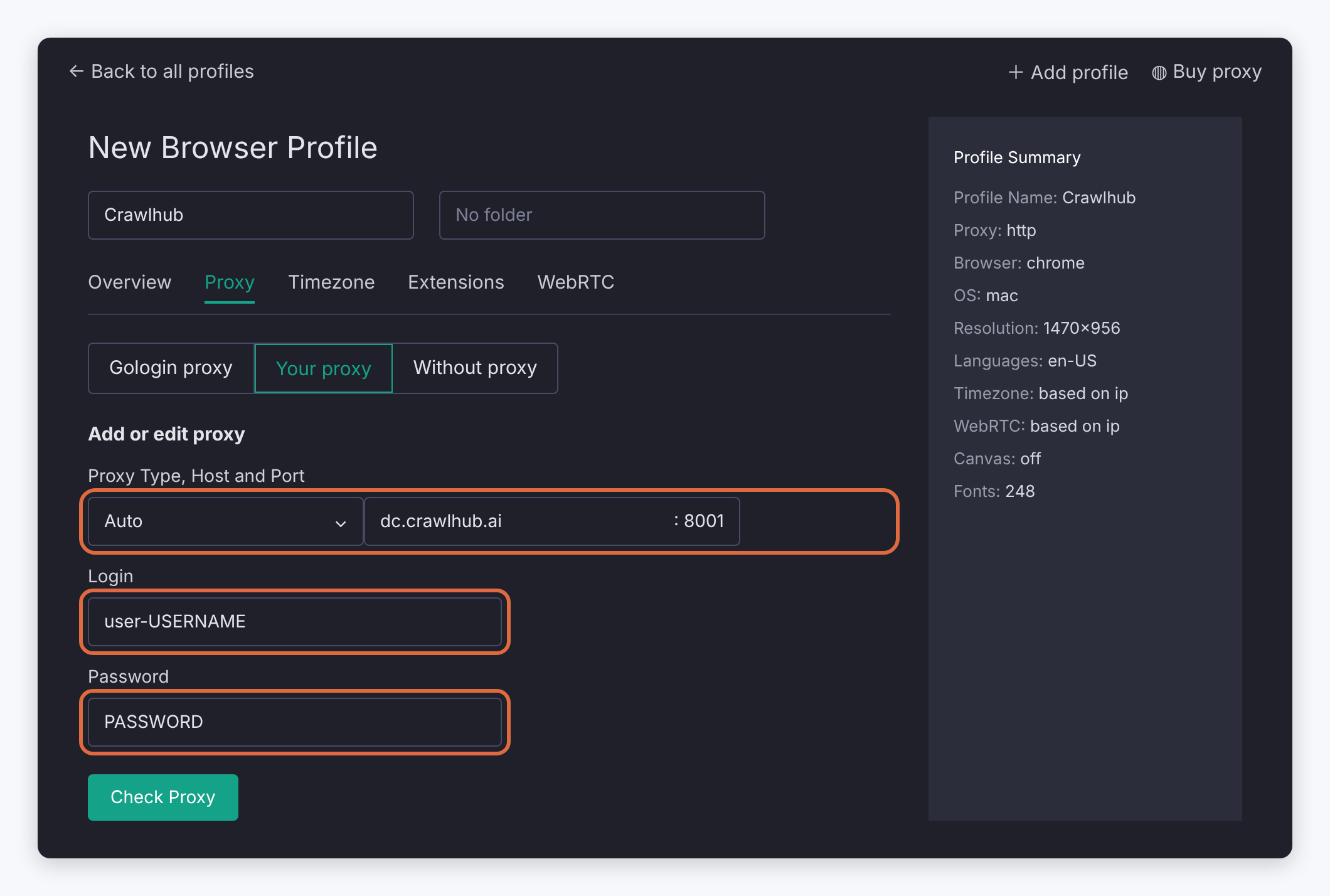
Document interface reference: datacenter proxy fields. View full size Connect and inspect the check
Click Connect in the current add-proxy flow. GoLogin checks the proxy and shows a green working indicator or a failed result. Older profile forms may show Check Proxy.
If GoLogin offers Quick fix for a failed third-party proxy, that action can replace it with a built-in GoLogin proxy. Choose Not now and repair your custom connection if you intend to keep using Crawlhub.
The screenshots contain document example values, not live endpoints or measurements. Use the assigned settings in the current instructions.
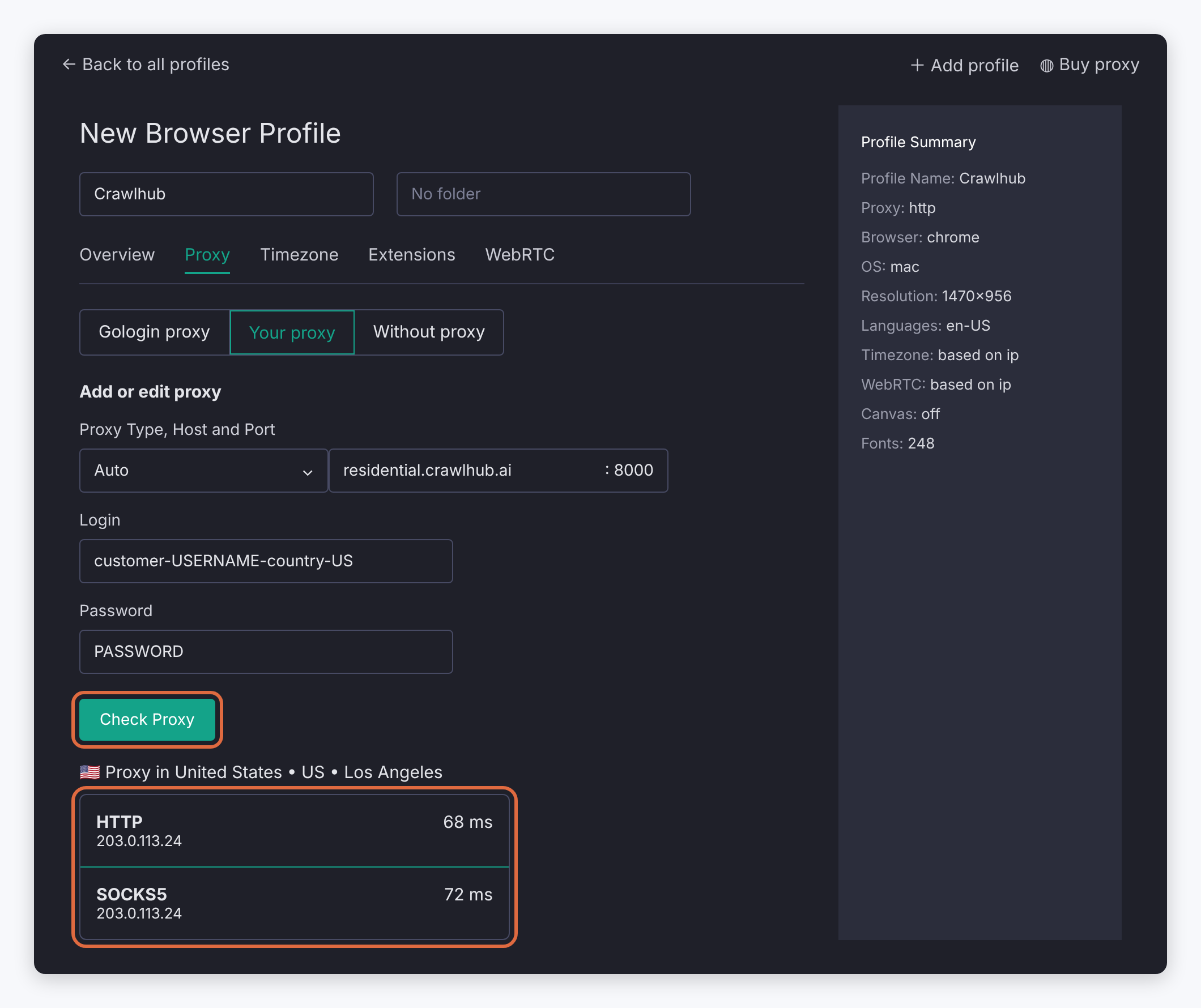
Document interface reference: connection-check example. View full size Run the profile and verify
Save any profile edits, then run the browser profile. Open an IP-check page inside that profile and confirm the address and location.
Use the assigned fixed IP or sticky-session settings when continuity matters. Browser-profile cookies and proxy IP lifetime are separate; restarting a saved profile does not make a rotating proxy static.
The screenshots contain document example values, not live endpoints or measurements. Use the assigned settings in the current instructions.
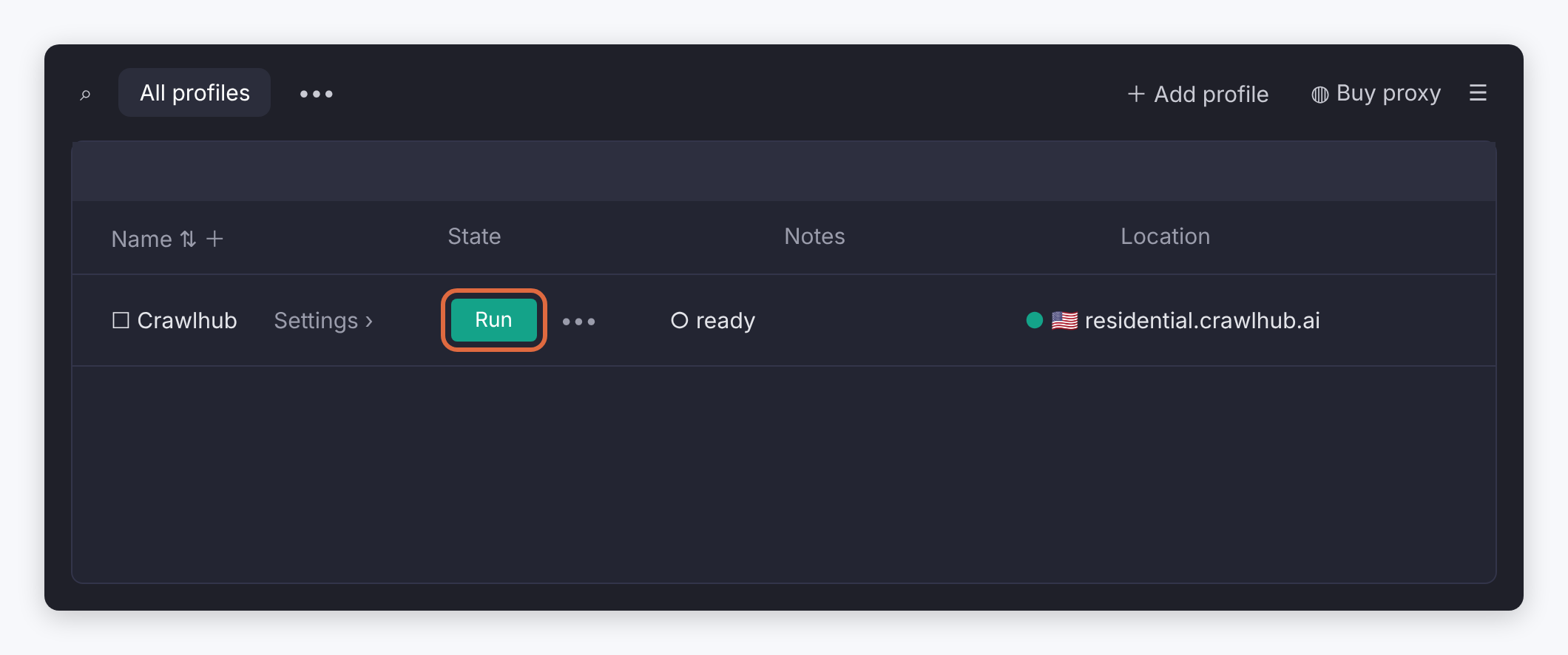
Document interface reference: run the saved profile. View full size 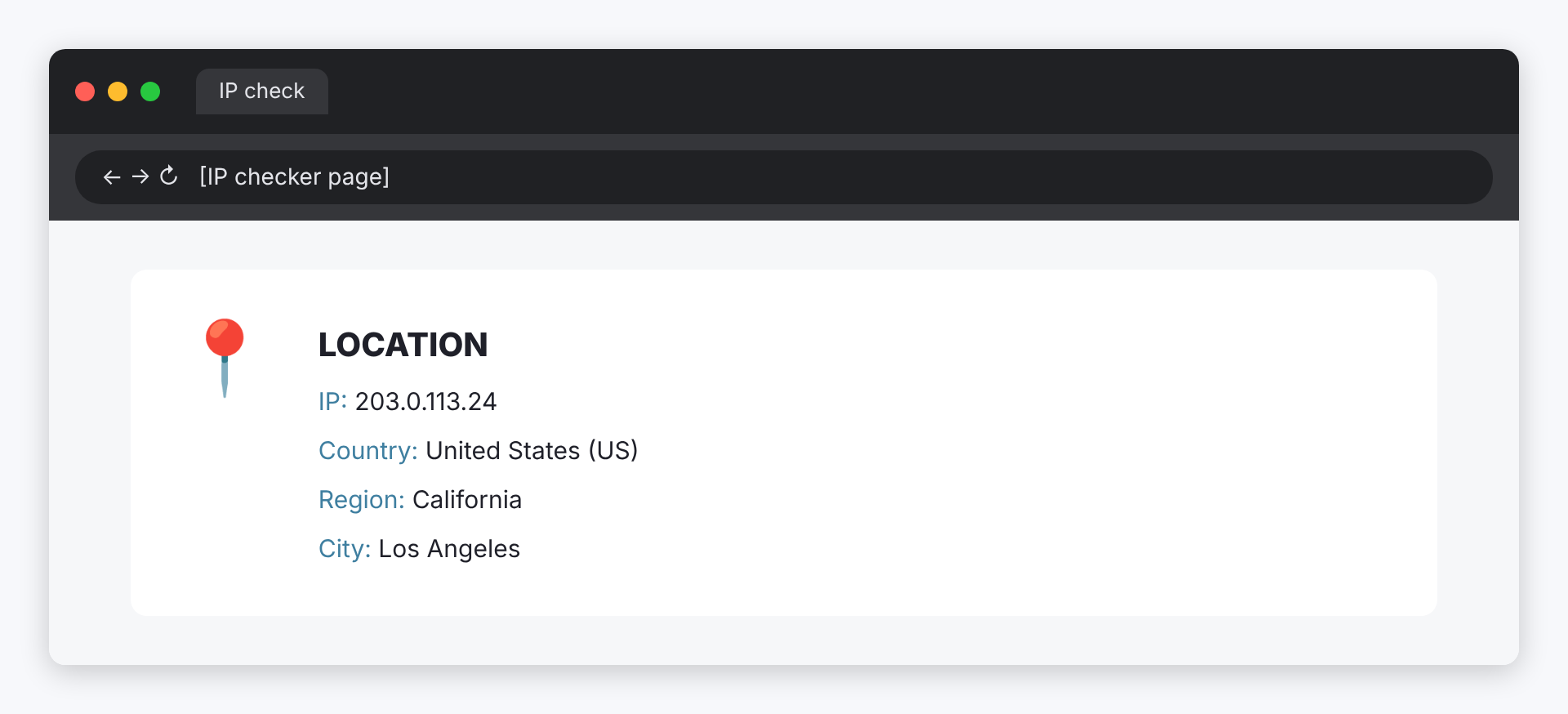
Document interface reference: IP-check output example. View full size
When the connection fails
Use the error to narrow down the next check.
GoLogin cannot connect
Check that the host-only field contains no protocol prefix, username or URL path. Verify the port and login separately.
The connection changed provider
Check whether a Quick fix action replaced your third-party proxy with a built-in one.
Protocol menu looks different
Use the assigned endpoint type and the current connection-check flow. Do not infer a product capability from an older screenshot.